
Billova offers a selection of predefined invoice templates designed with professional, business-oriented color schemes that align with modern branding standards. Each template is built to provide a polished and consistent look for your invoices. However, you can still personalize any chosen template by modifying its colors to perfectly match your company’s brand identity.
Only C-Business plan subscribers can benefit of the full customization of invoices and credit notes.
Follow the steps below to update the design according to your preferences.
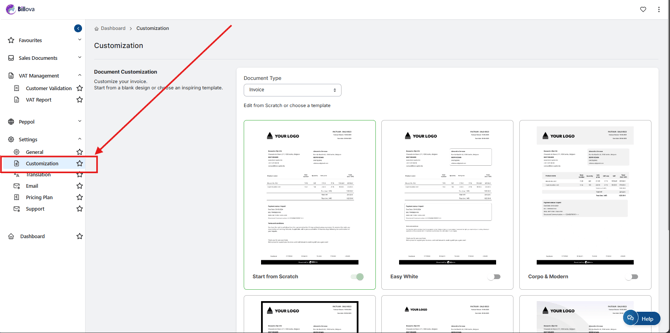
- Step 1: On the left menu in the settings section, locate and select the Customization tab.
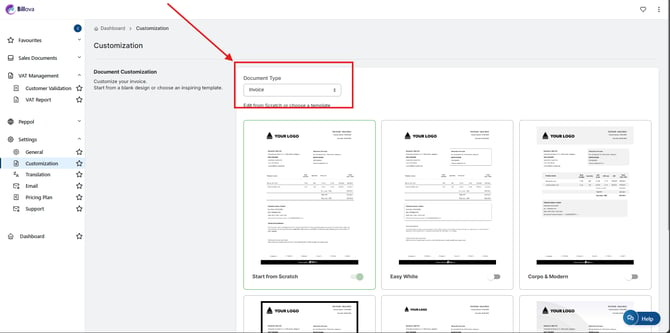
- Step 2: Select "Invoice" in Document Type
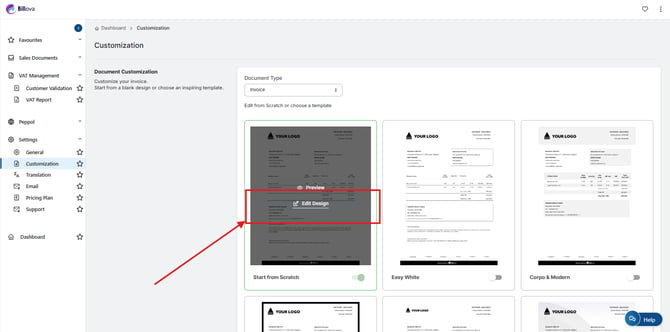
- Step 3: Move your mouse over the template you want, then click ‘Edit Design’.
- Step 4: In the Design Global Settings panel, locate the color options available:
- Background Color: Adjust the main color of your invoice background.
- Banner Color: Modify the color of the header banner displayed at the top of the invoice.
- Titles Color: Change the color of headings and section titles such as “Invoice Date” or “Total (Incl. VAT)”.
- Step 5: Choose Your Colors:
- Click on the color palette or input specific color codes (e.g., HEX or RGB values) for precision.
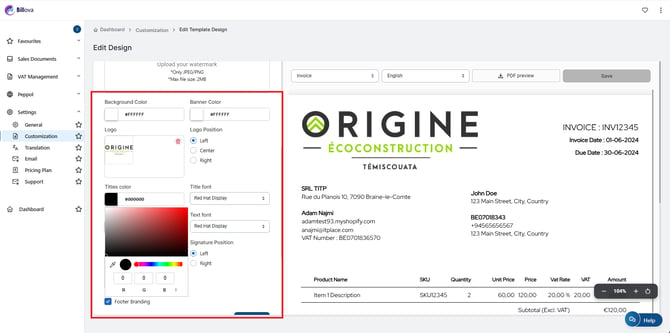
- Click on the color palette or input specific color codes (e.g., HEX or RGB values) for precision.
- Step 6: Click Save to confirm and apply the updated color scheme.
With Billova’s predefined professional templates, you already start from a business-ready design. The added flexibility to personalize background, banner, and title colors allows your invoices to fully reflect your brand’s visual identity while maintaining clarity and elegance.